Spike Recorder 4.0
Spike Recorder turns the signals from your SpikerBox into a moving graph. Use it to watch an experiment, record it, then reopen the recording to measure signals and explore spikes and frequency content.
This is the Current guide for the new app. Use Classic above for the older Spike Recorder. The main controls are shared across computers, phones, tablets, and the web; device permission prompts and file windows depend on your operating system.
Make your first recording
- Open Spike Recorder. Get the app or launch the browser version from Spike Recorder.
- Connect your SpikerBox. Follow your device's setup instructions, connect its data cable, then use SpikerBox → Connect if it has not connected automatically. In a browser, select the device and allow access when prompted.
- Check the signal. Choose Signal at the bottom. A moving trace shows incoming data. Open SpikerBox → Channels to check which channels are on.
- Press Record at the upper right. It changes to Stop, and the recording clock runs.
- Press Stop when you finish. Complete any save prompt and wait for saving to finish.
- Press File (the folder) and open the saved recording. Use Play/Pause and the position slider to review it.
A moving live trace does not mean a file is being recorded. Look for Stop and the recording clock. See Record and save for the complete workflow.
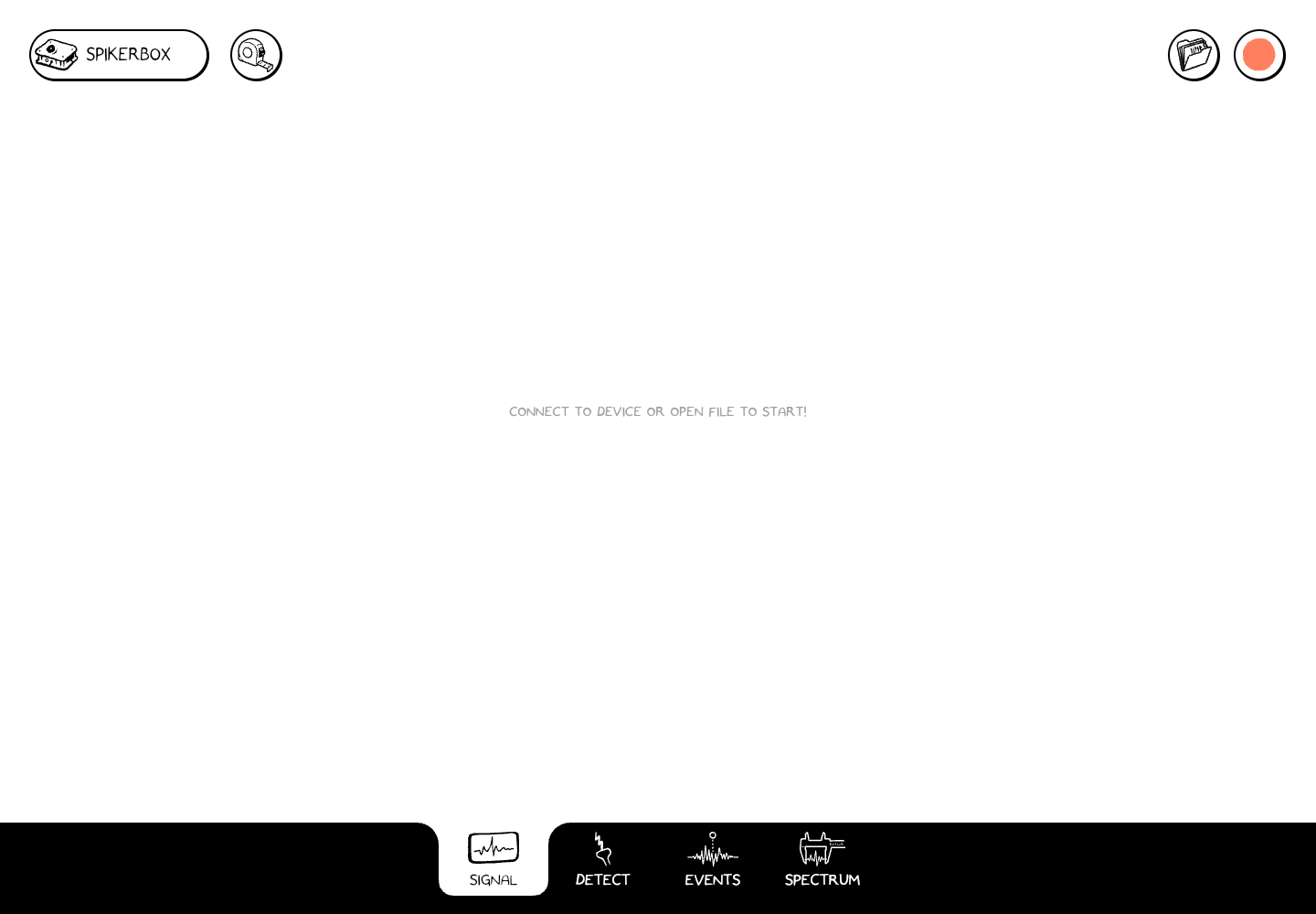
Start screen in the web app. Connect a SpikerBox for live signals, or use File to explore an existing recording.
Choose your next step
- Connect a SpikerBox, including Chromebook USB permission.
- Learn the controls and the four workspaces.
- Record and save, then open and review.
- Set up channels, detect spikes, mark events, or explore Spectrum.
- Find and share files, or solve a problem.
The screenshots in this guide show the actual 4.0 web app. Tablet-sized screenshots show the responsive web layout; your operating system's file picker and permission dialogs will look different.