Know the screen
Most of the screen is the waveform: time runs horizontally, and signal amplitude runs vertically. The controls stay around its edges so you can change views without losing your place.
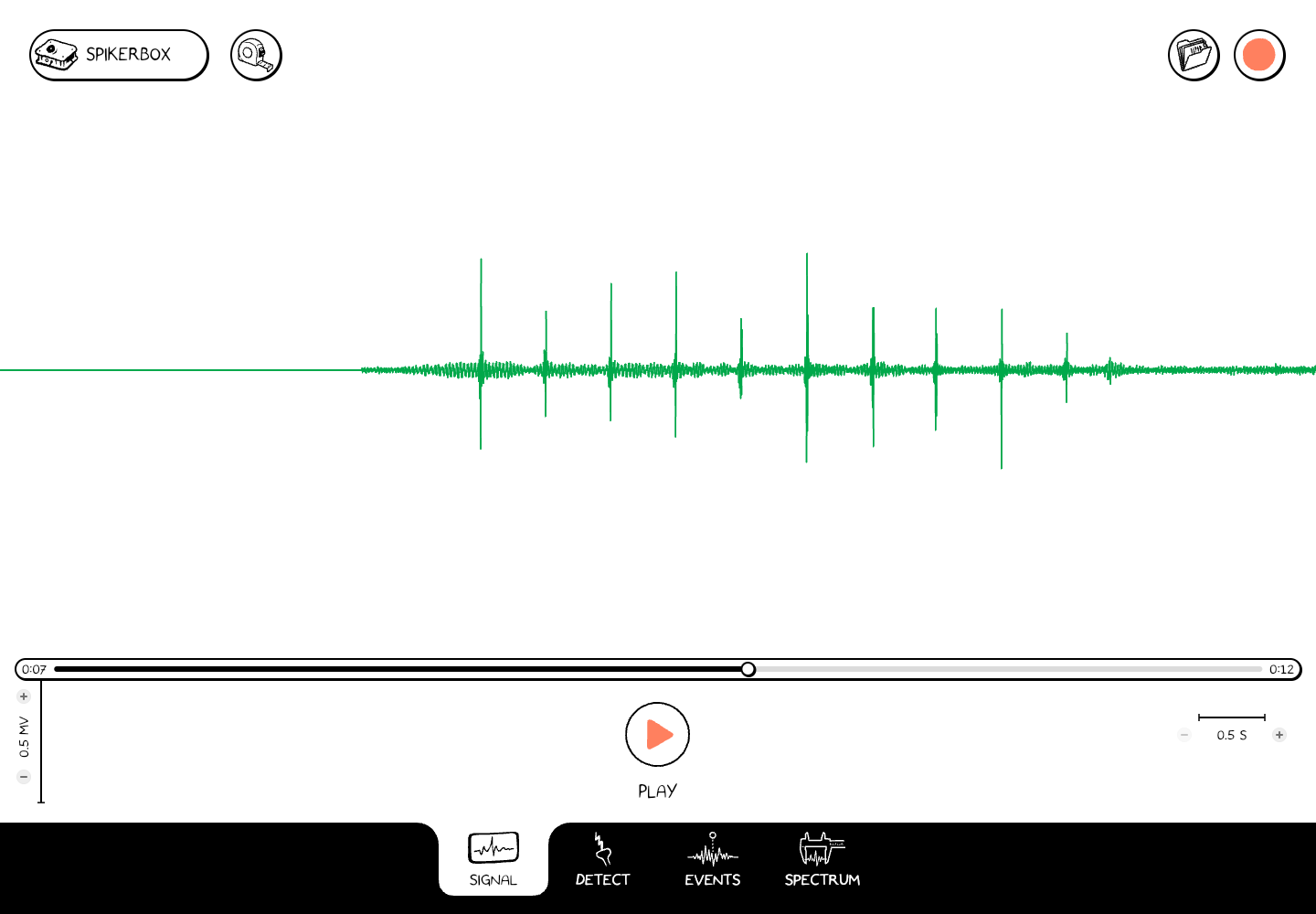
Signal view with a saved recording paused near 7 seconds. The screenshot shows a 0.5 mV amplitude scale and a 0.5 s time scale.
Main controls
| Control | What it does |
|---|---|
| SpikerBox, upper left | Opens the menu for Connect, Channels, Events, and Settings. |
| Measure, tape-measure icon | Turns interval measurement on or off in a supported view. In Signal, drag across the trace to measure a section. |
| File, folder at upper right | Opens the recording chooser. The chooser is supplied by the browser or desktop OS, or is the app's recordings list on a phone/tablet. |
| Record / Stop, upper right | Starts recording a connected SpikerBox; Stop ends the recording and starts saving it. |
| Save, disk beside File | Appears when an opened recording has unsaved edits, such as event marks. Saves those edits. |
| Play / Pause, bottom center | Plays or pauses an open recording. With a live device, pauses or resumes the live display/acquisition. It is unavailable while recording. |
| Position slider, above playback controls | Moves to another time in an opened recording. |
| Amplitude and time scales | Change how much signal height and time are visible. Read the displayed units when comparing traces. |
While recording, several tools and menus are hidden or unavailable. Finish with Stop before changing the recording setup or opening a file.
Four workspaces
| Tab | Use it for |
|---|---|
| Signal | Watching the trace, playing a recording, and measuring a time interval. |
| Detect | Setting a threshold or amplitude band to select spikes. |
| Events | Comparing the average waveform around selected spikes or event marks. |
| Spectrum | Viewing how the signal's frequency content changes over time. |
The Events tab is the analysis workspace. SpikerBox → Events is the menu for adding and editing event labels.
On a smaller screen
The app rearranges and compacts controls to fit the available space. The workflow and tab names remain the same. If a panel covers the trace, close that panel to return to the waveform.
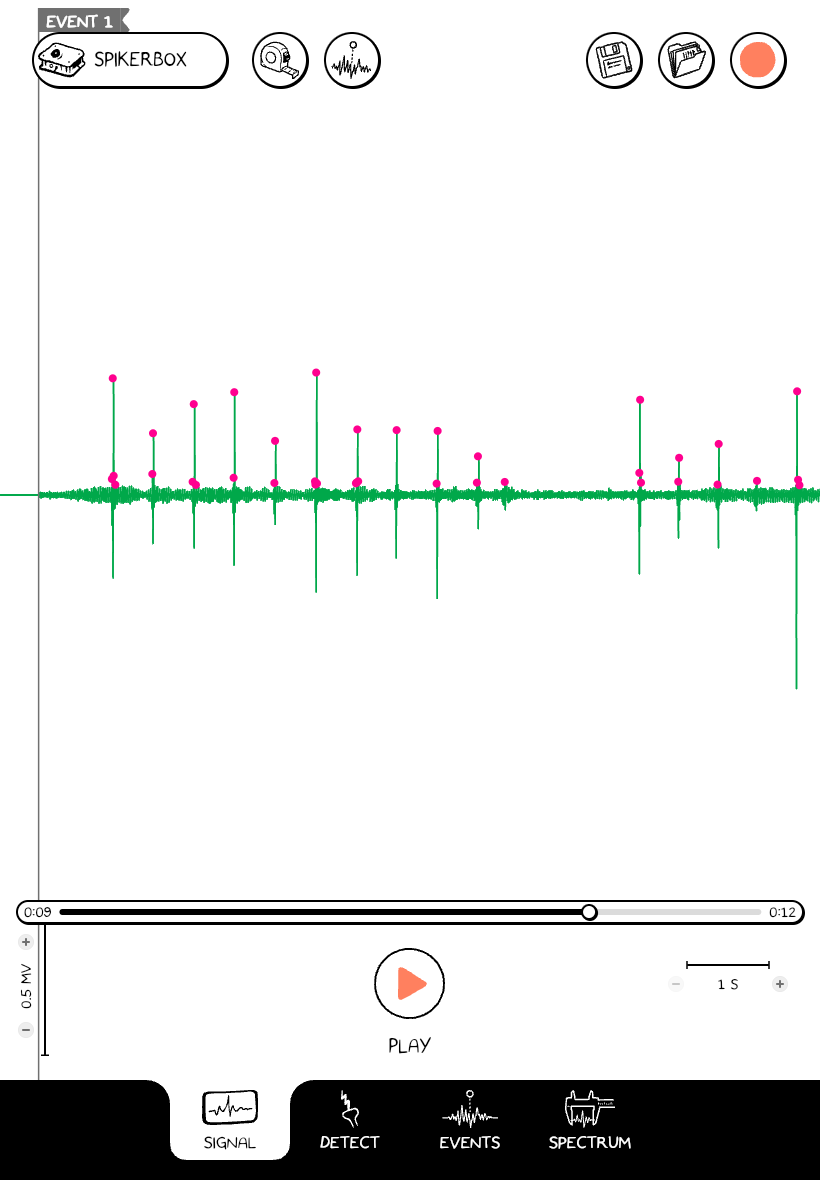
The same web app at a tablet-sized viewport; this is not a screenshot of the native iPad app.