Open and review a recording
You do not need a connected SpikerBox to explore a saved recording.
- Press File, the folder at the upper right.
- Select a recording in the system/browser chooser or the app's recordings list.
- Use Play/Pause at the bottom to control playback.
- Move the position slider to the part of the experiment you want to inspect.
- Adjust the displayed time and amplitude scales to make the signal easier to see.
Opening a recording switches away from the live device. Canceling the file chooser leaves the current source in place. To return to live signals, save any edits and use SpikerBox → Connect.
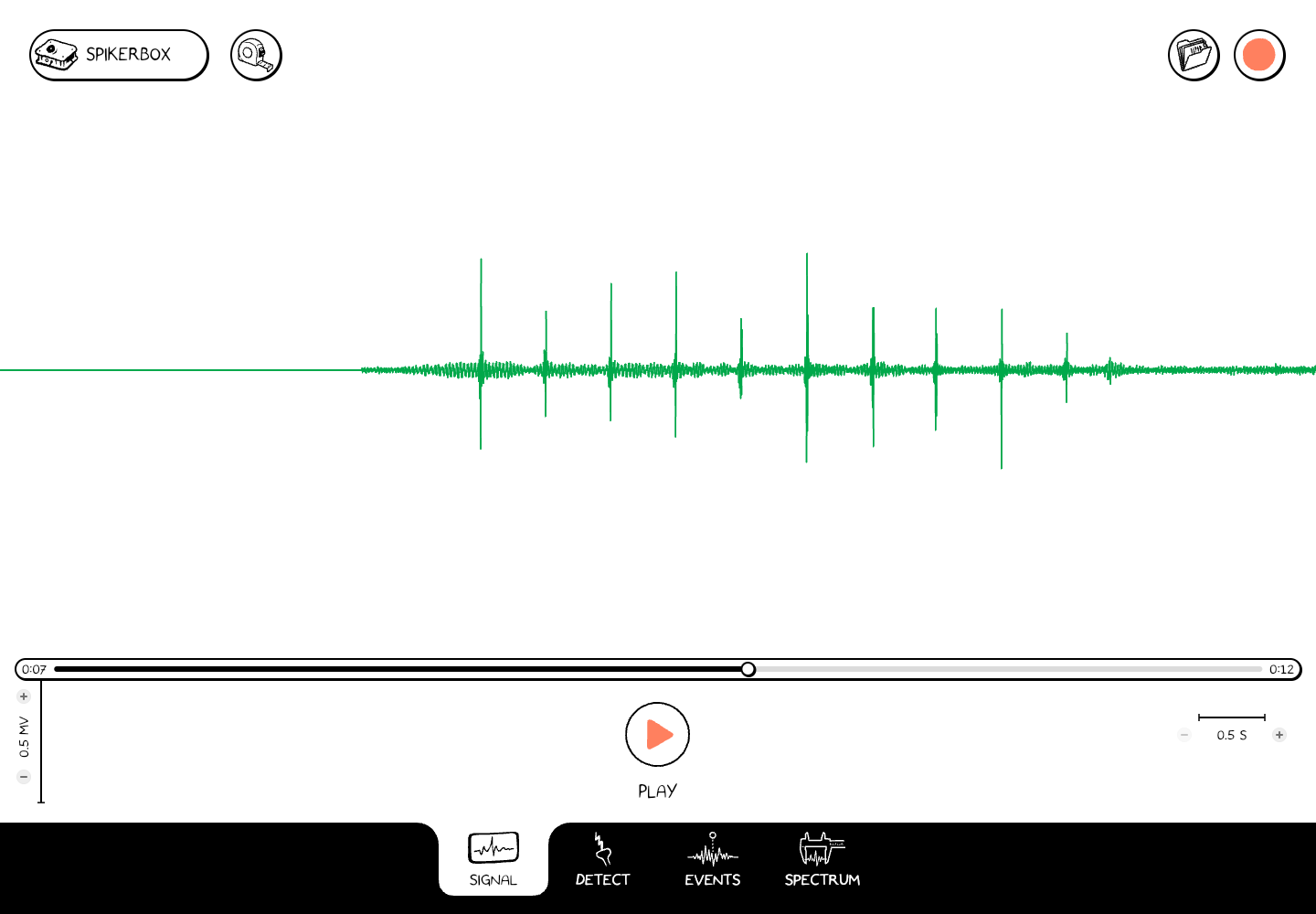
Measure an interval
- In Signal, pause near the section of interest.
- Press Measure (the tape-measure icon).
- Drag across the waveform to select a time interval.
- Read the measurement panel. Length is the selected duration. RMS summarizes signal amplitude over that interval; it is not the height of a single peak.
- Use Copy to copy the displayed measurements, or turn Measure off to return to ordinary navigation.
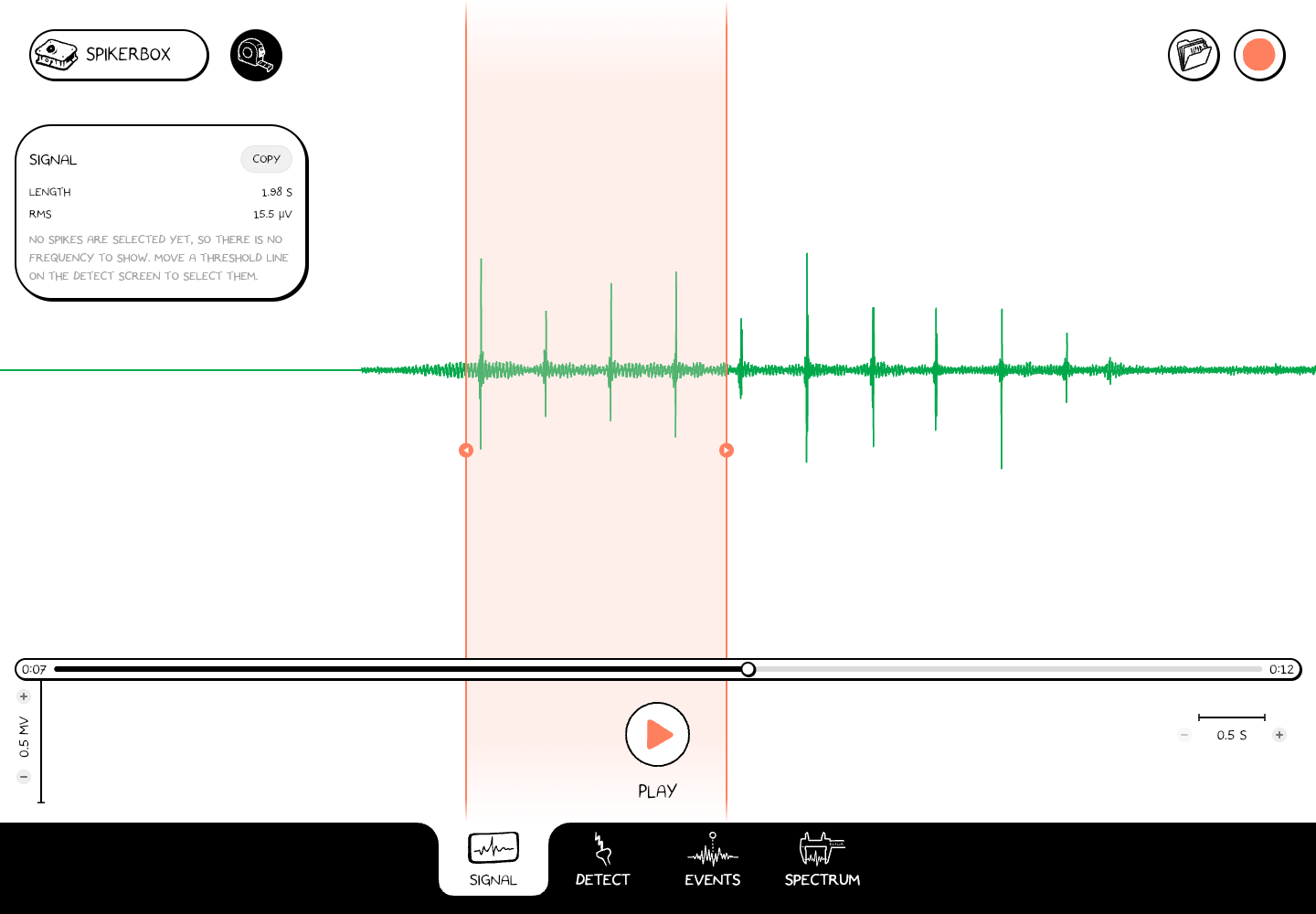
This sample's selected interval is 1.98 seconds with an RMS amplitude of 15.5 µV. Your values depend on the recording and selection.
Read the units shown by the app. Calibration and the available channels depend on the source recording or device.
Continue the analysis
- Use Detect to select spikes by amplitude.
- Add event marks to identify stimuli or moments in the experiment.
- Use Spectrum to look at frequency content.
Changing the view does not make a new recording. If you add marks or other saved analysis changes, use the Save disk when it appears.